REconnect User Guide
REconnect is a desktop application for Real Estate agents to manage their work via a Command Line Interface (CLI) while still having the benefits of a Graphical User Interface (GUI).
- Windows or Linux: Press Home or Ctrl + Home (depending on the PDF reader).
- macOS: Press ⌘ + Up Arrow.
Quick start
Ensure you have Java
17or above installed.Mac users: Ensure you have the precise JDK version prescribed here.
If you need help installing Java, you may find this guide by Oracle useful. You can navigate the sidebar of the linked page to find platform-specific instructions.Download the latest
REconnect.jarfile from here.Copy the file to the folder you want to use as the home folder for REconnect.
Open a command terminal:
- Windows: Press
Win + R, typecmd, and press Enter. - Mac: Press
Cmd + Space, typeTerminal, and press Enter. - Linux: Press
Ctrl + Alt + Tor search for "Terminal" in your Activities or Applications menu.
- Windows: Press
cd(change directory) into the folder you put the jar file in.Typecd␣(with a space), and drag the folder into the terminal.Enter the command
java -jar REconnect.jarto start the application. A GUI similar to the one below should appear in a few seconds.
Note: The app contains some sample data, and it may not correspond to the data shown in the image below.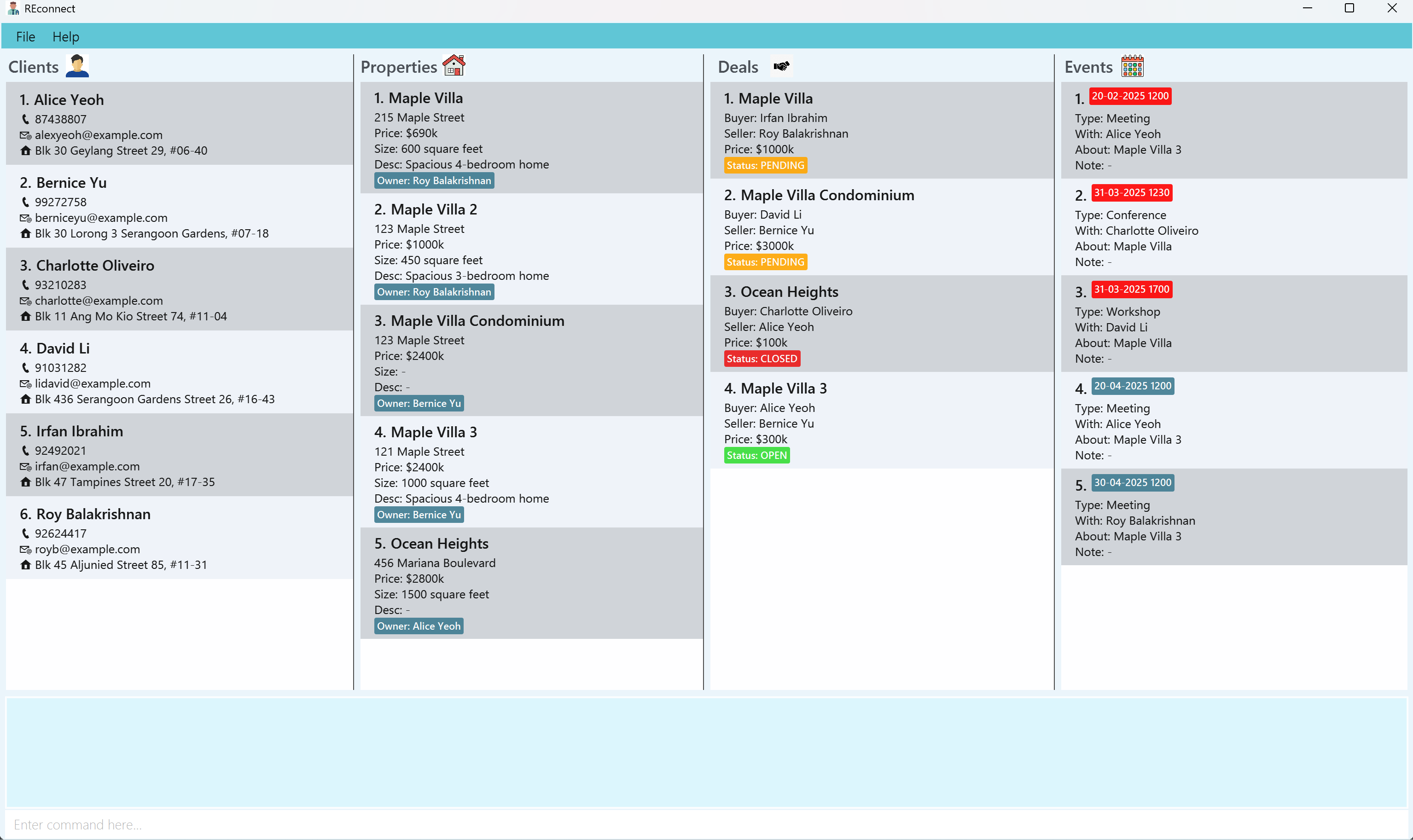
Type the command in the command box and press Enter to execute it.
Some example commands you can try:help: Opens the help window.add_client name/John Doe phone/98765432 email/johnd@example.com addr/311, Clementi Ave 2, #02-25: Adds a client namedJohn Doeto the client list panel.delete_property 3: Deletes the 3rd property shown in the current property list.exit: Exits the application.
Refer to the Features below for details of each command.
Features
UX Enhancement 1: Autocompletion for all commands
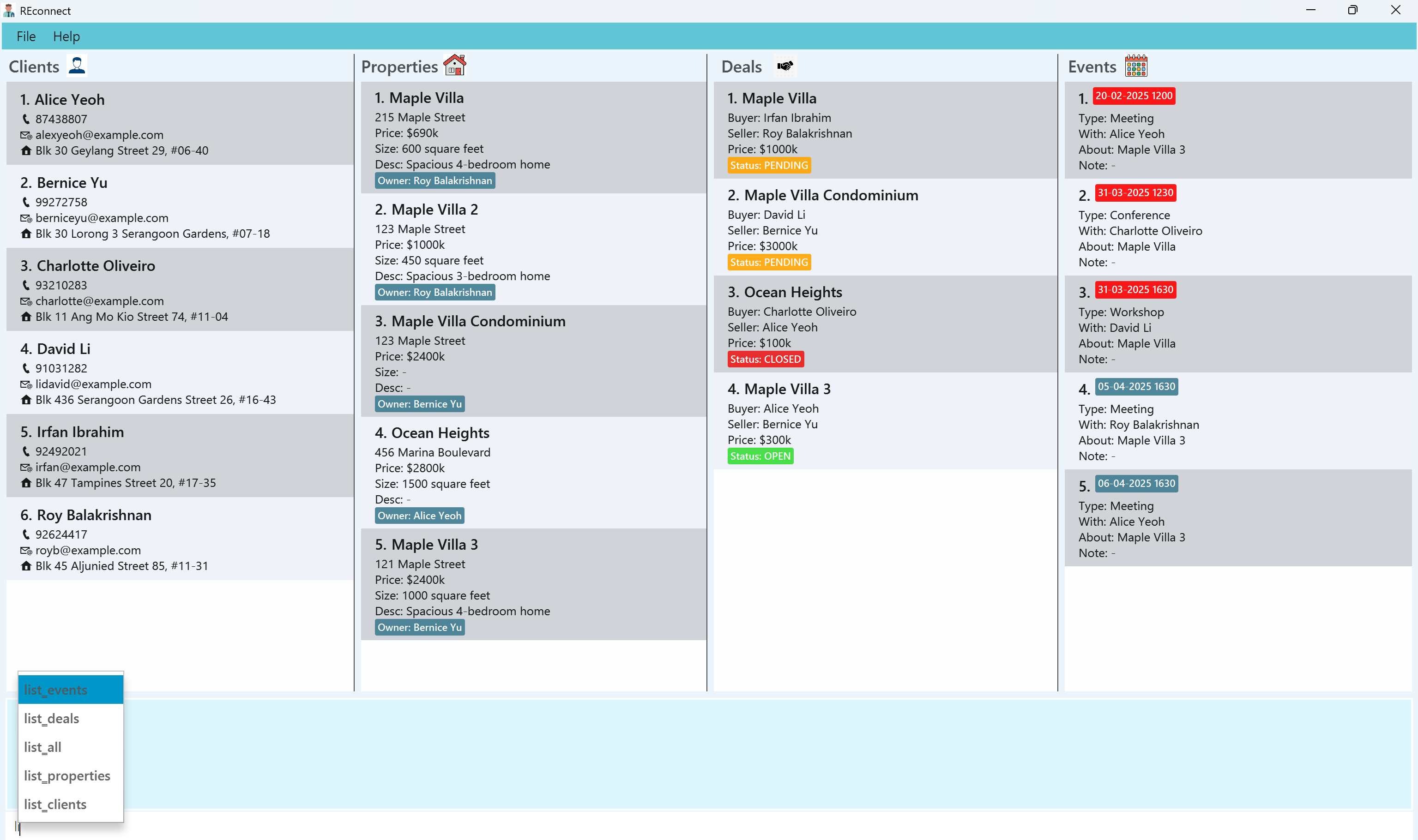
REconnect provides autocompletion for all commands. This allows users to quickly find the command they want to use without having to remember the exact syntax. It works by typing the first few letters of the command, choosing the command from the dropdown list, and pressing Enter to choose it. This works for command parameters as well. This is especially useful for long commands with many parameters, as it saves time and reduces the chance of errors.
UX Enhancement 2: Command history
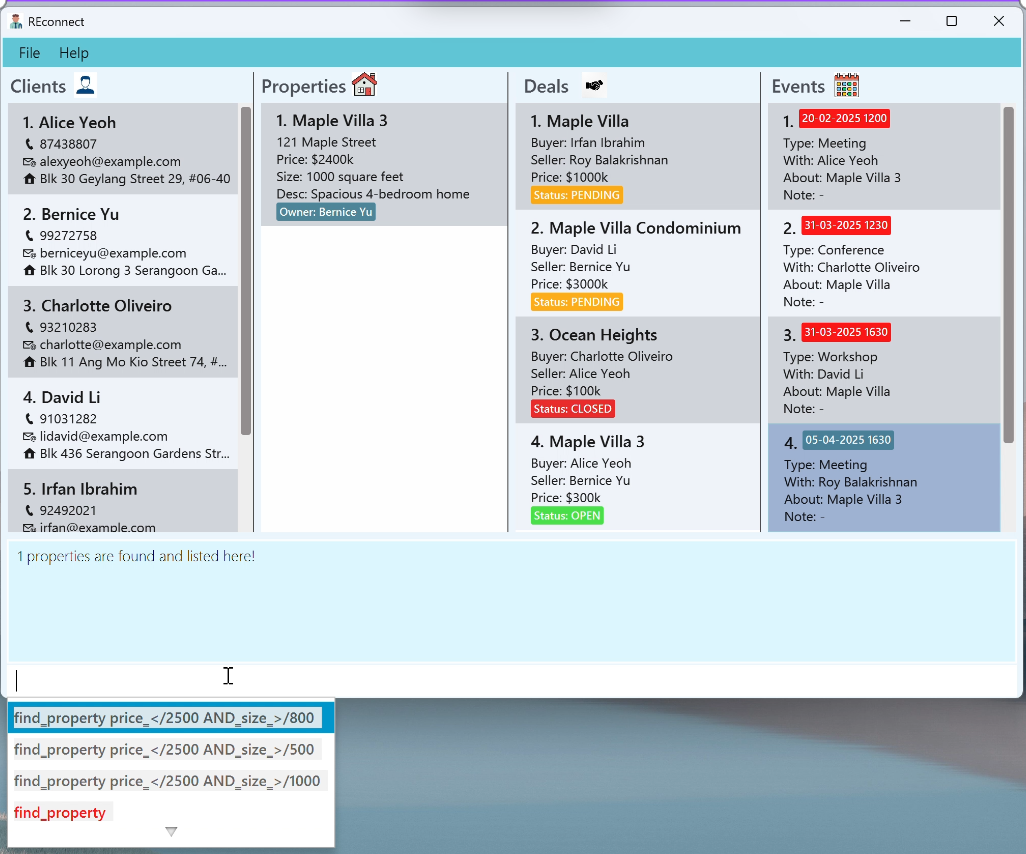
REconnect keeps track of all the commands entered by the user during a session. To view this history, the cursor should be in the 0th position of the command box. The user can then use the up and down arrow keys to scroll through the history of commands. At most 4 commands are shown at a time in the dropdown list to prevent cluttering the command box. This allows users to quickly re-enter previous commands without having to type them out again.
Note:
The most recent command is shown at the top of the list, and the oldest command is shown at the bottom.
Commands that caused an error are also included in the history and appear in red.
The command history is cleared when the application is closed.
Notes about the command format:
Words in
UPPER_CASEare the parameters to be supplied by the user.
e.g. inadd_client name/NAME,NAMEis a parameter which can be used asadd_client name/John Doe.Words in
[square brackets]are optional parameters.
e.g. inedit_client INDEX [name/NAME] [phone/PHONE] ...,NAMEandphoneare optional and need not be provided.Parameters can be in any order.
e.g. if the command specifiesname/NAME phone/PHONE_NUMBER,phone/PHONE_NUMBER name/NAMEis also acceptable.Extraneous parameters for commands that do not take in parameters (such as
helpandexit) will be ignored.
e.g. if the command specifieshelp 123, it will be interpreted ashelp.If you are using a PDF version of this document, be careful when copying and pasting commands that span multiple lines as space characters surrounding line-breaks may be omitted when copied over to the application.
Viewing help : help
Shows a message explaining how to access the help page.

Format: help
Client Commands
Adding a client: add_client
Creates a new client in REconnect.
Format: add_client name/NAME phone/PHONE_NUMBER [email/EMAIL] [addr/ADDRESS]
- 💡 The client's email and address are optional fields.
- The client's name must not be empty and must not exceed 50 characters.
- The client's name must be an alphanumeric string and can contain spaces, and the special characters
/,\and'. The name should not start with a special character. - The client's phone number must start with either 6, 8 or 9, and must be exactly 8 digits long.
- Clients cannot have the same name or phone number, but they can share the same email address.
- Client names with different casings are allowed (i.e. "Bernice Yu" and "bernice yu" are distinct names).
- Duplicate names are not allowed.
- Multiple spaces in between names are accepted, similar to how you can do that in the contact list of your phone e.g. "John Doe".
Examples:
add_client name/John Doe phone/98765432 email/johnd@example.com addr/John street, block 123, #01-01add_client name/John Doe phone/98765432
Editing a client : edit_client
Edits an existing client in REconnect at the specified index.
Format: edit_client INDEX [name/NAME] [phone/PHONE] [email/EMAIL] [addr/ADDRESS]
- 💡 At least one of the optional fields must be provided.
- The index refers to the index number shown in the displayed client list, and should be a positive integer that does not exceed the client list size.
- The restrictions in the
add_clientcommand also apply here. - Existing values will be updated to the input values.
- Editing a client's name will result in an update to his/her name if it exists in deals, listings, or events.
Examples:
edit_client 1 phone/91234567 email/johndoe@example.comedits the phone number and email address of the 1st client to be91234567andjohndoe@example.comrespectively.edit_client 2 name/Betsy Croweredits the name of the 2nd client to beBetsy Crower.
Finding clients: find_client
Displays all clients that match the given criteria.
Format: find_client [name_keywords/KEYWORDS] [addr/ADDRESS] [email/EMAIL] [phone/PHONE]
- 💡 Not all prefixes need to be used. You can use any combination of the above prefixes.
- All prefixes except for the first one must have a connective keyword prefix
AND_orOR_(case-sensitive). The prefixes used must be of the same type: either allAND_, or allOR_. - The order of the name keywords does not matter. e.g.
Hans Bowill matchBo Hans. - The following prefixes can be used:
name_keywords/KEYWORDSto search names by keywords (case-insensitive)addr/ADDRESSto search by address (case-insensitive)email/EMAILto search by email (case-sensitive)phone/PHONEto search by phone number
- For the name keywords, only full words will be matched e.g.
Hanwill not matchHans. - The rest of the keywords will be matched as substrings.
Examples:
find_client name_keywords/JohnreturnsJohnandJohn Doe.find_client name_keywords/Alice DavidreturnsAlice Yeoh,David Li.find_client name_keywords/John AND_addr/123 Main St AND_email/example.comreturns clients withJohnbeing part of the name and address containing123 Main St(case-insensitive) and email containingexample.com.
Listing all clients : list_clients
Displays all clients in REconnect.
Format: list_clients
- Any extra arguments given will throw an error.
find_client command to show the full list of clients again.
Deleting a client : delete_client
Deletes the specified client from REconnect.
Format: delete_client INDEX
- Deletes the client at the specified
INDEX. - The index refers to the index number shown in the displayed client list.
- The index should be a positive integer that does not exceed the client list size.
- Extra parameters results in an error.
- Note: The client must not be involved in any existing deals, listings, or events. Else, the client cannot be deleted.
Examples:
list_clientsfollowed bydelete_client 2deletes the 2nd client in REconnect.find_client name_keywords/Johnfollowed bydelete_client 1deletes the 1st client in the results of thefind_clientcommand.
Property Commands
Adding a property : add_property
Creates a new property in REconnect.
Format: add_property prop/PROPERTY_NAME owner/OWNER_ID addr/ADDRESS price/PRICE [size/SIZE] [desc/DESCRIPTION]
- 💡 Size and description are optional fields.
- The property name must not be empty and must not exceed 50 characters.
- The property name must be an alphanumeric string and can contain spaces, and the special characters
&and@. The property name should not start with a special character. - Property names with different casings are accepted (i.e. "Maple Villa" and "maple villa" are distinct names).
- Multiple spaces in between names are accepted (i.e. "Maple Villa" and "Maple Villa" are distinct property names that are valid).
- The owner ID refer to the index numbers shown in the client list, and should be a positive integer that does not exceed the client list size.
- PRICE must be a positive integer and is in thousands of S$ and must have 3 to 6 digits.
- SIZE is in square feet and should range from 100 to 99999.
- Description should be between 1 and 50 characters (if provided).
Examples:
add_property prop/Sunset Villa owner/1 addr/123 Sunset Way price/150 size/1200 desc/Beautiful sunset viewadd_property prop/Ocean Heights owner/2 addr/456 Marina Boulevard price/2800 size/1500
Editing a property : edit_property
Edits an existing property in REconnect at the specified index.
Format: edit_property INDEX [prop/PROPERTY_NAME] [owner/OWNER_ID] [addr/ADDRESS] [price/PRICE] [size/SIZE] [desc/DESCRIPTION]
- 💡 At least one of the optional fields must be provided.
- The index refers to the index number shown in the property list, and should be a positive integer that does not exceed the client list size.
- The restrictions in the
add_propertycommand also apply here. - Existing values will be updated to the input values.
Examples:
edit_property 1 price/1600 desc/Newly renovatededits the price and description of the 1st property in the list.edit_property 2 prop/Sunrise Villa addr/789 Morning Streetedits the name and address of the 2nd property in the list.
Finding properties : find_property
Displays all properties that match the given criteria.
Format: find_property [name_keywords/KEYWORDS] [addr/ADDRESS] [price_</PRICE_BELOW] [price_>/PRICE_ABOVE] [size_</SIZE_BELOW] [size_>/SIZE_ABOVE] [owner/OWNER]
- 💡 Not all prefixes need to be used. You can use any combination of the above prefixes.
- All prefixes except for the first one must have a connective keyword prefix
AND_orOR_(case-sensitive). The prefixes used must be of the same type: either allAND_, or allOR_. - The order of the name keywords does not matter. e.g.
Maple Villawill matchVilla Maple. - The following prefixes can be used:
name_keywords/KEYWORDSto search property names by keywords (case-insensitive)addr/ADDRESSto search by address (case-insensitive)price_</PRICE_BELOWto search by price below a certain valueprice_>/PRICE_ABOVEto search by price above a certain valuesize_</SIZE_BELOWto search by size below a certain valuesize_>/SIZE_ABOVEto search by size above a certain valueowner/OWNERto search owner name by keywords (case-insensitive)
- For the name keywords, only full words will be matched e.g.
Hanwill not matchHans. - The address keyword will be matched as a substring.
- The PRICE and SIZE keywords used must follow the restrictions defined in
add_propertycommand.
Examples:
find_property owner/John Doe AND_price_>/500find_property addr/123 Main St OR_price_>/1000 OR_size_>/500
Listing all properties : list_properties
Displays all properties in REconnect.
Format: list_properties
- Any extra arguments given will throw an error.
find_property command to show the full list of properties again.
Deleting a property : delete_property
Deletes the specified property from REconnect.
Format: delete_property INDEX
- Deletes the property at the specified
INDEX. - The index refers to the index number shown in the displayed property list.
- The index should be a positive integer that does not exceed the client list size.
- Extra parameters results in an error.
Examples:
list_propertyfollowed bydelete_property 2deletes the 2nd property in REconnect.find_property name_keywords/Villafollowed bydelete_property 1deletes the 1st property in the results of thefind_propertycommand.
Deal Commands
Adding a deal : add_deal
Creates a new property deal in REconnect.
Format: add_deal pid/PROPERTY_ID buyer/BUYER_ID price/PRICE [status/STATUS]
- Creates a deal with the specified property, buyer and price details.
- 💡 Status is optional and indicates the deal progress (open, pending, closed) (case-insensitive), and defaults to pending if not specified.
- The property ID and buyer ID refer to the index numbers shown in the displayed lists.
- The IDs must be positive integers that do not exceed the property and client list sizes respectively.
- The property owner will automatically be set as the seller.
- The property must not be involved in another existing deal.
- The price must be a positive integer between 3 and 6 digits (in thousands).
Examples:
add_deal pid/1 buyer/1 price/100 status/CLOSEDcreates aCLOSEDdeal for property #1 with buyer #1 at $100,000.add_deal pid/3 buyer/2 price/500creates a deal for property #3 with buyer #2 at $500,000 with default status ofPENDING.
Updating a deal : update_deal
Updates an existing deal in REconnect at the specified index.
Format: update_deal INDEX [prop/PROPERTY_ID] [buyer/BUYER_ID] [price/PRICE] [status/STATUS]
- 💡 At least one of the optional fields must be provided.
- The index refers to the index number shown in the displayed deal list, and should be a positive integer that does not exceed the deal list size.
- The specified property ID and buyer ID must refer to existing entities in REconnect.
- Price is in thousands and must have 3 to 6 digits.
- Status can be updated to indicate deal progress (OPEN, PENDING, CLOSED) (case-insensitive).
- Seller cannot be manually updated as it is automatically set based on the property owner.
Examples:
update_deal 3 status/CLOSEDchanges the status of deal #3 to CLOSED.update_deal 1 price/500 buyer/2updates deal #1 with a new price of $500,000 and changes the buyer to client #2.
Finding deals : find_deal
Displays all deals that match the given criteria.
Format: find_deal [prop/PROPERTY_NAME_KEYWORDS] [buyer/BUYER_NAME_KEYWORDS] [seller/SELLER_NAME_KEYWORDS] [status/STATUS] [price_</PRICE_BELOW] [price_>/PRICE_ABOVE]
- 💡 Not all prefixes need to be used. You can use any combination of the above prefixes.
- All prefixes except for the first one must have a connective keyword prefix
AND_orOR_(case-sensitive). The prefixes used must be of the same type: either allAND_, or allOR_. - The order of the name keywords does not matter. e.g.
Maple Villawill matchVilla Maple. - The following prefixes can be used:
prop/PROPERTY_NAME_KEYWORDSto search property names by keywords (case-insensitive)buyer/BUYER_NAME_KEYWORDSto search buyer names by keywords (case-insensitive)seller/SELLER_NAME_KEYWORDSto search seller names by keywords (case-insensitive)status/STATUSto search by deal status (case-insensitive)price_</PRICE_BELOWto search by price below a certain valueprice_>/PRICE_ABOVEto search by price above a certain value
- For the name keywords, only full words will be matched e.g.
Hanwill not matchHans. - The PRICE keyword used must follow the constraints defined in
add_dealcommand.
Examples:
find_deal prop/Villafinds all deals involving properties with "Villa" in their names.find_deal status/CLOSEDfinds all closed deals.find_deal buyer/John AND_seller/Maryfinds all deals with buyers containing "John" in their name AND sellers containing "Mary" in their name.find_deal prop/Ocean OR_status/PENDINGfinds all deals with properties containing "Ocean" in their name OR with PENDING status.
Listing all deals : list_deals
Displays all deals in REconnect.
Format: list_deals
- Any extra arguments given will throw an error.
Event Commands
Adding an event : add_event
Creates a new event in REconnect.
Format: add_event at/EVENT_DATE_TIME etype/EVENT_TYPE cid/CLIENT_ID pid/PROPERTY_ID note/NOTE
- Creates an event with the specified start date and time, event type, property, client, and note.
- Event start time must be in the format "DD-MM-YYYY HHmm" and be no earlier than
01-01-2025 0000. - Event type must be one of the following:
conference,meeting,workshoporothers(case-insensitive). - The client ID and property ID refer to the index number shown in the displayed lists.
- The IDs must be a positive integer that does not exceed the client list size.
- Event note can contain additional details about the event and has no character limit. If there is nothing to add to the note, it should be set to "N/A".
Examples:
add_event at/30-04-2025 1700 etype/meeting cid/1 pid/1 note/Property viewing at 123 Main Stadd_event at/01-09-2026 1400 etype/others cid/3 pid/2 note/Thank client for successful deal
Editing an event : edit_event
Edits an existing event in REconnect at the specified index.
Format: edit_event INDEX [at/EVENT_DATE_TIME] [etype/EVENT_TYPE] [cid/CLIENT_ID] [pid/PROPERTY_ID] [note/NOTE]
- 💡 At least one of the optional fields must be provided.
- The index refers to the index number shown in the displayed event list, and should be a positive integer that does not exceed the event list size.
- Existing values will be updated to the input values.
- The restrictions in the
add_eventcommand also apply here.
Examples:
edit_event 1 at/01-05-2025 1200 note/Changed to 12pmedits the start time and note of the 1st event in the list.edit_event 2 etype/meeting cid/3 pid/2edits the event type, client ID and property ID of the 2nd event in the list.
Finding events : find_event
Displays all events that match the given criteria.
Format: find_event [before/TIMESTAMP] [after/TIMESTAMP] [etype/EVENT_TYPE] [with/CLIENT_NAME_KEYWORDS] [about/PROPERTY_NAME_KEYWORDS]
💡 Not all prefixes need to be used. You can use any combination of the above prefixes.
All prefixes except for the first one must have a connective keyword prefix
AND_orOR_(case-sensitive). The prefixes used must be of the same type: either allAND_, or allOR_.The order of the name keywords does not matter. e.g.
Maple Villawill matchVilla Maple.The following prefixes can be used:
before/TIMESTAMPto search for events before a certain date and timeafter/TIMESTAMPto search for events after a certain date and timeetype/EVENT_TYPEto search by event type (case-insensitive)with/CLIENT_NAME_KEYWORDSto search client names by keywords (case-insensitive)about/PROPERTY_NAME_KEYWORDSto search property names by keywords (case-insensitive)
For the name keywords, only full words will be matched e.g.
Hanwill not matchHans.The TIMESTAMP keyword(s) used must follow the constraints defined in
add_eventcommand.
Examples:
find_event with/Alice Yeo AND_etype/meetingfinds all meeting events with clients containing "Alice" or "Yeo" in their name.find_event before/05-04-2025 1200 AND_after/01-03-2025 1000finds all events between 01-03-2025 1000 and 05-04-2025 1200.
Listing all events : list_events
Displays all events in REconnect.
Format: list_events
- Any extra arguments given will throw an error.
find_event command to show the full list of events again.
Deleting an event : delete_event
Deletes an event from REconnect.
Format: delete_event INDEX
- Deletes the event with the corresponding
INDEX. - The index refers to the index number shown in the displayed event list.
- The index should be a positive integer that does not exceed the event list size.
- Extra parameters results in an error.
Examples:
list_eventfollowed bydelete_event 2deletes the 2nd event in REconnect.find_event etype/meetingfollowed bydelete_event 1deletes the 1st event in the filtered list.
Miscellaneous Commands
Listing all clients, listings, deals and events : list_all
Displays all data in REconnect.
Format: list_all
- Displays all clients, properties, deals and events in REconnect.
- Any extra arguments given will throw an error.
Exiting the program : exit
Exits the program.
Format: exit
Saving the data
REconnect data are saved in the hard disk automatically after any command that changes the data. There is no need to save manually.
Editing the data file
REconnect data are saved automatically as a JSON file [JAR file location]/data/addressbook.json. Users who know how JSON files work are welcome to update data directly by editing that data file.
Furthermore, certain edits can cause the REconnect to behave in unexpected ways (e.g., if a value entered is outside the acceptable range). Edit the data file only if you are confident that you can update it correctly.
FAQ
Q: How do I transfer my data to another Computer?
A: Install the app in the other computer and overwrite the empty JSON file it creates with the JSON file that contains the data of your previous AddressBook home folder.
Q: What happens to the existing deals if I update a property's owner?
A: When you update a property's owner, any existing deals involving that property will automatically have their seller updated to reflect the new owner.
Q: Can I bulk update multiple deals at once?
A: No, deals must be updated individually using the update_deal command with the specific index of each deal.
Q: How are deals sorted in the deals list?
A: Deals are displayed in the order they were created, with the oldest deals appearing first.
Q: Do closed deals still appear in the main list?
A: Yes, deals of all statuses (OPEN, PENDING, CLOSED) remain visible in the main list. Use the find_deal command to filter by status if needed.
Q: If I update a client's name, will it automatically update in all related deals?
A: Yes, updating a client's name will automatically update their name in all deals where they appear as a buyer or seller.
Q: Can I convert the price to a different currency?
A: No, REconnect currently only supports prices in Singapore dollars (S$). All prices are displayed and stored in thousands of S$.
Q: What's the difference between using AND_ and OR_ in deal searches?
A: Using AND_ means all conditions must be met (e.g., specific buyer AND specific status), while OR_ means any condition can be met (e.g., specific buyer OR specific status).
Known issues
- When using multiple screens, if you move the application to a secondary screen, and later switch to using only the primary screen, the GUI will open off-screen. The remedy is to delete the
preferences.jsonfile created by the application before running the application again. - If you minimize the Help Window and then run the
helpcommand (or use theHelpmenu, or the keyboard shortcutF1) again, the original Help Window will remain minimized, and no new Help Window will appear. The remedy is to manually restore the minimized Help Window. - Emojis not being shown on Linux devices: Emojis may not be displayed correctly on Linux devices. This is due to the default font used in JavaFX not supporting emojis.
- Overlapping property names or addresses: Properties with different names but same addresses can be added, leading to potential overlaps. This will be fixed in a later release of the application.
Command summary
Client Commands
| Action | Format, Examples |
|---|---|
| Add Client | add_client name/NAME phone/PHONE_NUMBER [email/EMAIL] [addr/ADDRESS] e.g., add_client name/John Doe phone/98765432 email/johnd@example.com addr/John street, block 123, #01-01 |
| Edit Client | edit_client INDEX [name/NAME] [phone/PHONE] [email/EMAIL] [addr/ADDRESS]e.g., edit_client 1 phone/91234567 email/johndoe@example.com |
| Delete Client | delete_client INDEXe.g., delete_client 3 |
| Find Client | find_client [name_keywords/KEYWORDS] [addr/ADDRESS] [email/EMAIL] [phone/PHONE]e.g., find_client name_keywords/John AND_addr/123 Main St AND_email/example.com |
| List Clients | list_clients |
Property Commands
| Action | Format, Examples |
|---|---|
| Add Property | add_property prop/PROPERTY_NAME owner/OWNER_ID addr/ADDRESS price/PRICE [size/SIZE] [desc/DESCRIPTION] e.g., add_property prop/Sunset Villa owner/1 addr/123 Sunset Way price/150 size/1200 desc/Beautiful sunset view |
| Edit Property | edit_property INDEX [prop/PROPERTY_NAME] [owner/OWNER_ID] [addr/ADDRESS] [price/PRICE] [size/SIZE] [desc/DESCRIPTION]e.g., edit_property 1 price/1600 desc/Newly renovated |
| Delete Property | delete_property INDEXe.g., delete_property 1 |
| Find Property | find_property [name_keywords/KEYWORDS] [addr/ADDRESS] [price_</PRICE_BELOW] [price_>/PRICE_ABOVE] [size_</SIZE_BELOW] [size_>/SIZE_ABOVE] [owner/OWNER]e.g., find_property addr/123 Main St OR_price_>/1000 OR_size_>/500 |
| List Properties | list_properties |
Deal Commands
| Action | Format, Examples |
|---|---|
| Add Deal | add_deal pid/PROPERTY_ID buyer/BUYER_ID price/PRICE [status/STATUS] e.g., add_deal pid/1 buyer/1 price/100 status/CLOSED |
| Update Deal | update_deal INDEX [prop/PROPERTY_ID] [buyer/BUYER_ID] [price/PRICE] [status/STATUS]e.g., update_deal 3 status/CLOSED |
| Find Deal | find_deal [prop/PROPERTY_NAME_KEYWORDS] [buyer/BUYER_NAME_KEYWORDS] [seller/SELLER_NAME_KEYWORDS] [status/STATUS] [price_</PRICE_BELOW] [price_>/PRICE_ABOVE]e.g., find_deal prop/Ocean OR_status/PENDING |
| List Deals | list_deals |
Event Commands
| Action | Format, Examples |
|---|---|
| Add Event | add_event at/EVENT_DATE_TIME etype/EVENT_TYPE cid/CLIENT_ID pid/PROPERTY_ID note/NOTE e.g., add_event at/30-04-2025 1700 etype/meeting cid/2 pid/1 note/N/A |
| Edit Event | edit_event INDEX [at/EVENT_DATE_TIME] [etype/EVENT_TYPE] [cid/CLIENT_ID] [pid/PROPERTY_ID] [note/NOTE] e.g., edit_event 1 at/01-05-2025 1200 note/Changed to 12pm |
| Delete Event | delete_event INDEXe.g., delete_event 2 |
| Find Event | find_event [before/TIMESTAMP] [after/TIMESTAMP] [etype/EVENT_TYPE] [with/CLIENT_NAME_KEYWORDS] [about/PROPERTY_NAME_KEYWORDS]e.g., find_event before/05-04-2025 1200 AND_after/01-03-2025 1000 |
| List Events | list_events |
Miscellaneous Commands
| Action | Format, Examples |
|---|---|
| List All | list_all |
| Help | help |
| Exit | exit |